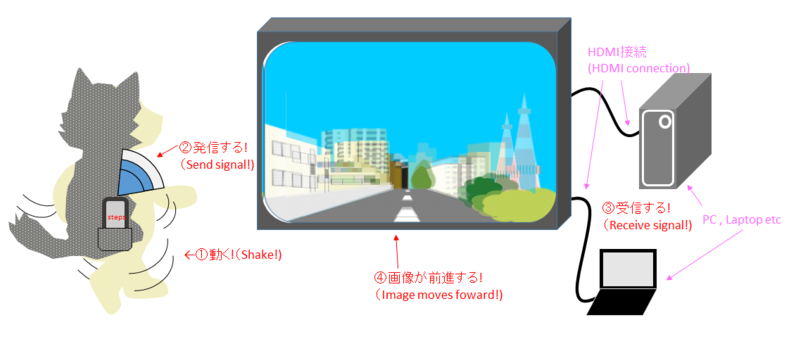
~~~「PCストリートビュー歩数計」の説明~~~
わからないことや質問があったらメールしてください!('ω')ノ
メールを送信するには、
メールソフトで送信されます(mailtoのやつ)をクリックしてください。
((必要なもの))
・WindowsPC(InternetExplorerでグーグルマップからストリートビューが見られるもので.NET Framework3.5以上が入ったもの)
→.NET Framework3.5以上のダウンロードとインストールは無料で以下のリンクからできます。
.NET Framework3.5以上のダウンロードとインストール
・Android2.3以上のスマホ
・無線LAN環境(WiFi接続)
((操作方法))
①「PCストリートビュー歩数計(歩数計アプリ)」(以下「歩数計アプリ」)を持ち歩くAndroid端末(スマホ・タブレット)にインストールします。
②zipファイルを解凍してできた、「PCストリートビュー歩数計_映像出力.exe」(以下「映像出力ソフト」)を(.NET Framework3.5以上がはいった)WindowsPCのお好きなフォルダに置きます。≪注1≫
③「映像出力ソフト」を実行して「はじめから」→「自IPアドレスを表示(Display IP Address)」でPCのローカルIPアドレスを表示します。(これに歩数計が送信します)≪注2≫
④「歩数計アプリ」→「送信するアドレスを設定」から上で得たIPアドレスを入力します
⑤「歩数計アプリ」の「コース選択」ボタンを押してコースを選びます。
⑥「歩数計アプリ」を振って5カウントしたらストリートビュー画面が動くと成功です。お疲れさまでした。
⑦終わるときは「歩数計アプリ」の「歩数計を停止する」で「映像出力ソフト」は受信停止します。フォームを閉じると次はそこから再開できます。
≪注1≫
*初めての実行の際に 「PCストリートビュー歩数計_映像出力.exe」と同じフォルダに「datafol」フォルダとその中に「androidkarano」フォルダやそのほかのデータファイルを作ります。
あしからずご了承ください。(._.)
*「WebBrowserコントロール」で使うIEバージョンは7か11でしかストリートビューが見れません。もし7か11以外に変更していて見れない場合レジストリで変更してください。
WebBrowser コントロールで使われている Internet Explorerを最新のバージョンに変更する
*2017/6/2 現在WebBrowser コントロールのIEバージョンが11 でしかストリートビューが見られないようです!!
*面倒ですがレジストリエディタからWebBrowser コントロールのIEバージョンを11に変更してください。(上記のリンクに詳しく書いてくれています)
*.exe ファイルを実行したとき「System.IO.FileNotFoundException: ファイルまたはアセンブリ 'Microsoft.mshtml, Version=7.0.3300.0, Culture=neutral, PublicKeyToken=b03f5f7f11d50a3a'、またはその依存関係の 1 つが読み込めませんでした。指定されたファイルが見つかりません。
ファイル名 'Microsoft.mshtml, Version=7.0.3300.0, Culture=neutral, PublicKeyToken=b03f5f7f11d50a3a' です。」のエラーが出る場合この 「PCストリートビュー歩数計_映像出力.exe」と同じフォルダに「Microsoft.mshtml.dll」を入れてください
Microsoft.mshtml.dllダウンロード
*.exe ファイルを実行したときファイアウォールから「このプログラムはサーバーとして動作しようとしています」という警告が出ると思いますが、無線を受信するためなので「ブロックを解除」してください。
≪注2≫
無線LAN環境で送受信します。スマホはWiFi を使用(ON)してください。
≪注意≫
・WebBrowserコントロールがメモリ解放をなかなかしてくれないので、PrivateMemorySizeが300MB以上でいったん「閉じてください」と表示されるのでいったん終了して(そこまでの位置を記録しますので)、再開してください。
・アンインストールは「PCストリートビュー歩数計_映像出力.exe」と「datafol」を削除してください。
・「出発、途中、目的地点を設定(Set Route)」で道順を設定する際は1日当たりの上限回数があります。(今のところ5回です)
・ストリートビュー画面のカメラの方向はおかしいときは画面をドラッグしてください。(ストリートビューの操作と同じです)
・本ソフトウェアは無料です。本ソフトウェアによるパソコンやパソコン内のソフトウェアの不具合、故障の責任は一切負いませんので悪しからずご了承ください。
(._.)
|
~~~Description of「PCStreetViewPedometer」~~~
Please email me if you do not understand or have any questions!('ω')ノ
To send mail,
Sent by mail software (method of mailto)Please click.
((Things necessary))
・WindowsPC(with InternetExplorer on which you can watch Street View from Google Map and which has .NET Framework3.5 or later version)
→You can downlord .NET Framework3.5 or later version for free
Download and install .NET Framework
・Smartphone with Android 2.3 or higher
・Wireless LAN environment (WiFi connection)
((How to use))
①Install「PCStreetViewpedometer (pedometer application)」(hereinafter referred to as the「pedometer application」) to the smartphon which you carry.
②Please unzip the zip file and place the「PCStreetViewpedometer (video output software) .exe」 (hereinafter reffered to as the「video output software 」) in your favorite folder of Windows PC (.NET Framework 3.5 or later entered).≪Note1≫
③Run 「Video output software」 and display 「Local IP address of PC」 from 「start」 → 「Display IP address」. (Pedometer will send to this)≪Note2≫
④Enter the IP address obtained above from 「pedometer application」 → 「Setting of IP address to send」
⑤Select the course by pushing the 「Course selection」 button of 「pedometer application」.
⑥When you shake the 「pedometer application」 and it counts 5, if the Street View screen moves, Congratulations!
⑦When you finish ,do in「pedometer application」→「Stop Pedometer」then 「video output software」stops receiving.When you close the form you can restart from there.
≪Note1≫
*When you run for the first time,it makes a 「datafol」 folder and 「androidkarano」 folder and other data files in the same folder.
Please acknowledge it.(._.)
*Street view can only be seen with 7 or 11 of the IE version used by 「WebBrowser control」.If you can not see it after changing to 7 or 11, please change it in the registry.
Change the Internet Explorer used in the WebBrowser control to the latest version
*2017/6/2 Currently it seems that Street View can be seen only when the IE version of WebBrowser control is 11!
*Although it is troublesome, please change the IE version of WebBrowser control to 11 with Registry Editor.
*Please try searching "How to change the IE version of WebBrowser control"or please refer to the above link (Japanese)
*When you run this「exe file」、「System.IO.FileNotFoundException: File or assembly 'Microsoft.mshtml, Version = 7.0.3300.0, Culture = neutral, PublicKeyToken = b03f5f7f11d50a3a', or one of its dependencies could not be loaded. The specified file could not be found.
File name 'Microsoft.mshtml, Version=7.0.3300.0, Culture=neutral, PublicKeyToken=b03f5f7f11d50a3a'」.If you get an error Please insert "Microsoft.mshtml.dll" in the same folder as 「PCStreetViewpedometer (video output software) .exe」
Microsoft.mshtml.dll Download
*When you run this「 exe file」I think that the warning "This program is trying to act as a server" comes out from the firewall, but since it is intended to receive radio, please "unblock".
≪Note2≫
Send and receive in wireless LAN environment. Please use WiFi (ON) for smartphone.
≪Caution≫
・Since the WebBrowser control does not readily release the memory, once "PrivateMemorySize" is 300 MB or more, it is displayed "Please close", so once you finish (it will record the position so far), please resume.
・If you uninstall 「video output software」,please delete「video output software」and「datafol」folder.
・There is an upper limit number of times per day when setting a route order with 「出発、途中、目的地点を設定(Set Route)」. (It is five times so far)
・When the orientation of the camera on the street view screen is wrong, please drag the screen. (It is the same as Street View operation)
・This software is free.We are not responsible for any malfunction or breakdown of software in PC or personal computer by this software.
(._.)
|